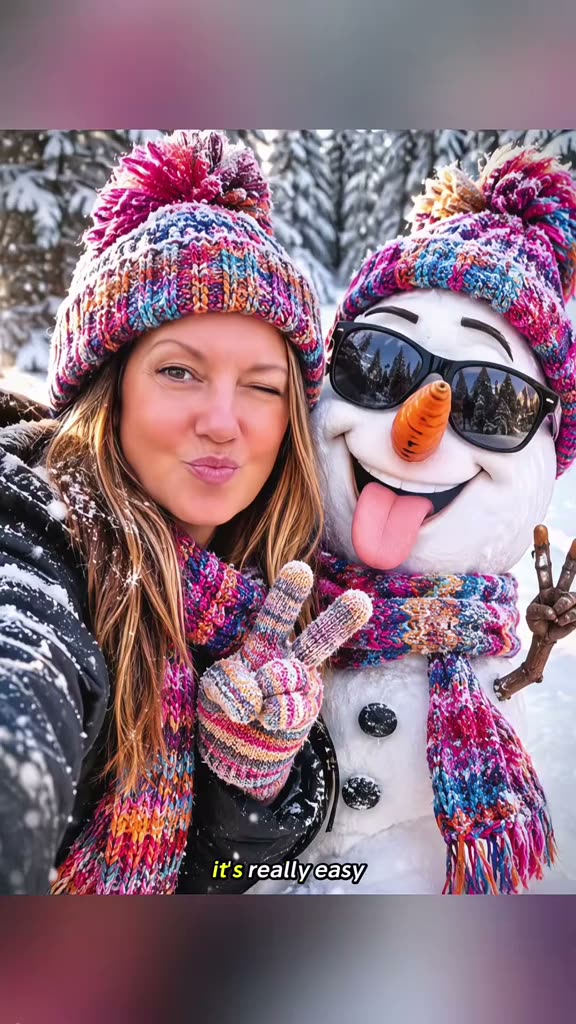
01What the Snowman Bestie photo looks like
A person and a snowman lean into the same close selfie. Snow fills the background, and the two wear knit hats and scarves that share a color palette. The paired outfits make the snowman look like a friend who turned up dressed for the same photo.
The opening of the linked TikTok shows finished examples before it moves to a phone walkthrough. Look at where the two faces sit in the frame. The hat and scarf make the pair look coordinated, while their different expressions give each face its own part in the portrait.
| What to check | How it looks in the reference |
|---|---|
| Framing | The person and snowman pose shoulder to shoulder. |
| Outfits | Knitted hats and scarves connect the two faces. |
| Setting | Snow surrounds the pair without hiding their expressions. |
02How to edit one selfie into a winter portrait
- Open the exampleVisit the Snowman Bestie Portrait trend page on AI Trend Club. Play the credited excerpt and notice how close the snowman sits to the person. Keep that pairing in mind when you look at your finished image.
- Add one selfiePress Edit your photo. Upload one clear adult selfie and confirm you have permission to use it. A visible face and expression give the editor a clear starting point.
- Review the included promptThe editor fills in the prompt for a close winter portrait. It describes a snowman beside you, matching hats and scarves, and a snowy outdoor setting. It also asks to keep your face recognizable.
- Check the credit quoteThe current quote is 5 credits for one still image. Check the amount in the editor before submitting. If you change the prompt, preserve the instructions about the person’s face and the snowman’s placement.
- Review and save the stillMake the photo, then check the face and framing. Both faces should have room, and the clothing should look coordinated even when the photo is small. Download the still when you are happy with the result.
03Choose a selfie with a visible expression
Use a clear adult selfie with good light across the face. Your expression is part of the portrait, so choose a photo that already looks the way you want to be seen. A simple face-forward shot leaves room for the scene to change while your features stay familiar.
If you have a few photos to choose from, compare the eyes and mouth before submitting. Pick one where both are easy to make out. It is easier to judge whether the edit kept your expression when the original shows it clearly.
- Use one adult in the source photo.
- Choose even light across the face.
- Keep the face and expression visible.
- Skip photos with several people.
- Avoid an existing filter that hides facial details.
04Snowman Bestie AI edit prompt
The image editor includes a prompt you can review before making the photo. If you want to adjust it, change one detail first, such as the color of the knitwear, and keep the instructions about identity and the two faces.
Edit the uploaded selfie into a still winter portrait. Keep the adult’s recognizable facial features, skin tone and expression. Place a cheerful snowman shoulder to shoulder with the adult, with both faces visible at selfie distance. Give them knitted hats and scarves in the same color palette. Use soft winter daylight, falling snow and a simple snowy outdoor background. Give the snowman a carrot nose and a playful expression. Keep the composition close, with no additional people, logos, text, border or watermark.05Fix a cropped snowman or mismatched outfit
If the snowman’s head is partly outside the image, ask for an eye-level portrait with both faces fully inside the frame. Keep the shoulders close so the effect still feels like a selfie. Giving both subjects more room works better here than moving the snowman farther into the background.
If the knitwear feels unrelated, ask for both hats and scarves in the same color palette. Keep the face instruction in place when you adjust the clothes. If the adult looks unfamiliar, check the source selfie first and ask the editor to preserve the visible features and expression.
- Both faces fit inside the crop.
- The scarves and hats look coordinated.
- The person still looks like the selfie.
06How many credits the photo uses
The trend page and credited reference are free to view. The editor currently quotes 5 credits for a still image, and a new account starts with 25 welcome credits. Check the quote in the editor before you submit. The linked video demonstrates the look, while your edit produces a still.
If you want to try another version, decide what to change after looking at the first. You could keep the same photo and adjust the hat and scarf colors. Comparing those two images makes it easier to see what your change did.
07Save the portrait and check the crop
Open the finished still at full size and check the face before you share. Then view it small to see whether the snowman and matching knitwear still read clearly. The two faces should be close enough for a profile crop or winter greeting. If you share the reference alongside your edit, credit the linked TikTok by @anne102333.
- Matching hats, snowy day.
- My winter portrait partner.
- A selfie before the snow melts.
08Questions
- Does the Snowman Bestie editor make a video?
- It creates one still image. The short clip on the trend page shows the look in the original post.
- Can I use my own selfie?
- Yes. Upload one clear adult selfie with a visible face.
- Can I choose a different scarf color?
- Yes. Review the included prompt and describe a shared color palette for the hats and scarves.
- Who posted the example?
- The linked TikTok was posted by @anne102333.