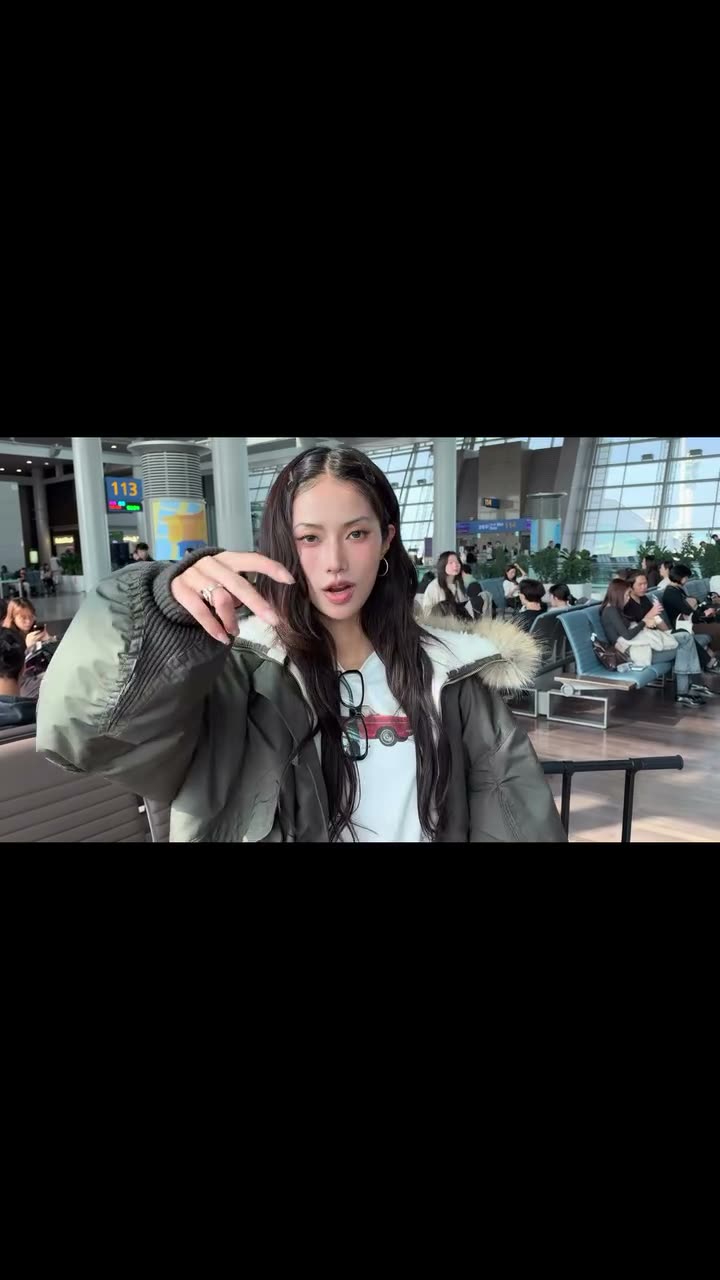
01What happens in the Airport Transition trend
The clip opens in an airport waiting area. A traveler raises one hand and forms a circle with her fingers close to the camera. The circle fills the view, hiding the cut. When the scene opens again, it is a night street, and the traveler steps into view and turns. The hand movement gives the change of location a clear visual cue.
The AI version uses one adult portrait for the same traveler in both places. The airport, the finger-circle transition, the night street and the turn remain in the sequence. This is a 9-second vertical clip with its original sound. It is a quick travel-style edit built around one photo and two scenes.
| Time | Beat |
|---|---|
| Shot 1 | A traveler stands in an airport and raises one hand toward the camera. |
| Shot 2 | Her fingers form a circle that fills the view. |
| Shot 3 | The scene opens on a night street with the traveler in front. |
| Shot 4 | She turns as the camera holds on the street setting. |
02How to make the airport transition from one photo
The Airport Transition page already has the scene and the edit setup. You do not need to type a prompt. Open the trend page, press Create your own and add one portrait for the traveler. The same upload is used before and after the circle cut, which helps keep one identity through both locations.
You can make the video in a browser. There is no app to install. Before you confirm, choose a resolution and read the credit amount on the button. The 9-second version costs fewer credits at 480p than at 720p. If a render fails, its credits return automatically.
- Open the trend pageGo to the Airport Transition page on AI Trend Club and press Create your own.
- Add one portraitChoose one adult whose photo you have permission to use.
- Keep one identityUse the same portrait for both locations; the template carries that traveler through the transition.
- Choose a resolutionThe 9-second video costs 415 credits at 480p or 934 credits at 720p. The button shows the exact amount before you spend.
- Make and download the videoTap Make my video. It is ready in a few minutes. Download the result with its original sound or silent.
03The photo that works
This role is the traveler who appears on both sides of the scene change. Use one adult portrait and keep the upload to the person you want to see in the airport and street scenes.
- Use one adult portrait for the traveler role.
- Choose the person you want to appear in both locations.
- Keep one portrait for the full clip so the traveler stays the same.
- Do not upload a group photo for this one-person template.
- If the traveler changes between scenes, use one portrait for the full clip.
- If a different person appears, choose one adult portrait and retry the template.
04A prompt to start from
AI Trend Club does not ask you to write an AI prompt. If you want to test the idea in another video model that accepts a reference clip, the prompt below describes the airport, the circle transition and the street scene in order.
Keep the same person throughout. The traveler’s identity should not change when the location changes.
Use the person in the reference photo as the traveler in every shot. Begin in the airport waiting area with the traveler raising one hand toward the camera. Let the fingers form a circle that fills the view and briefly hides the scene. Use that hand-circle moment as the transition. Open on the night street with the same person stepping into the frame, then turning as the camera holds on the street. Keep the vertical framing, original sequence and timing. Add no new scene, text or watermark.05CapCut template or AI video?
A CapCut template can cut together travel clips that you record yourself. It does not move your face into the original airport and night-street scenes. An AI video uses your portrait with the reference clip, so the traveler in the original sequence becomes the person in your photo while the hand-circle transition and both locations stay.
The original sound is included with this template. You can keep it when you download the video, or download silently and add a sound in TikTok or CapCut. You can also use CapCut to add subtitles or make final edits. The AI Trend Club page itself works in a browser and has no prompt box to fill in.
06Is the Airport Transition AI video free?
You can watch the original and read the trend page without paying. The new-account welcome is 25 credits. That is enough for a few images, not enough for this video. One render uses 415 credits at 480p or 934 credits at 720p. The amount appears on the button before you spend, and a failed render returns its credits automatically.
The Week pass is the least expensive entry that covers either resolution for one render. The 1,000-credit pack also covers this video at both listed resolutions. Check the credit number next to your selected setting before tapping Make my video.
| Option | Price | Credits |
|---|---|---|
| Week pass | $6.99 per week | 800 |
| 1,000 credits | $9.90 | 1,000 |
07Post it
This template includes the original sound. If you download silently, you can add the trend sound in TikTok or CapCut. Credit @31.ioa in the caption and let the hand-circle transition carry the post. The same person appearing in two places is the central visual idea.
Caption ideas:
- One circle, then a whole new street scene.
- Same traveler, two places, one quick transition.
- A city-change moment from one portrait.
08Questions
- What is the Airport Transition trend?
- It is a short video that moves from an airport to a night street when the traveler makes a circle with her fingers.
- Which AI makes the Airport Transition video?
- It uses an AI video model guided by the original clip. On AI Trend Club, choose the trend and add one adult portrait; there is no prompt to write.
- Can I make it on my phone?
- Yes. AI Trend Club runs in a browser, so you do not need to install an app. The finished clip is vertical for TikTok, Reels or Shorts.
- Does the transition use the same photo twice?
- Yes. Add one portrait. The same traveler identity carries through both the airport and night-street scenes.
- Who made the original?
- @31.ioa posted the original on Instagram on Nov 14, 2026. The trend page links to the post.