01What happens in the Reaching Out Cat trend
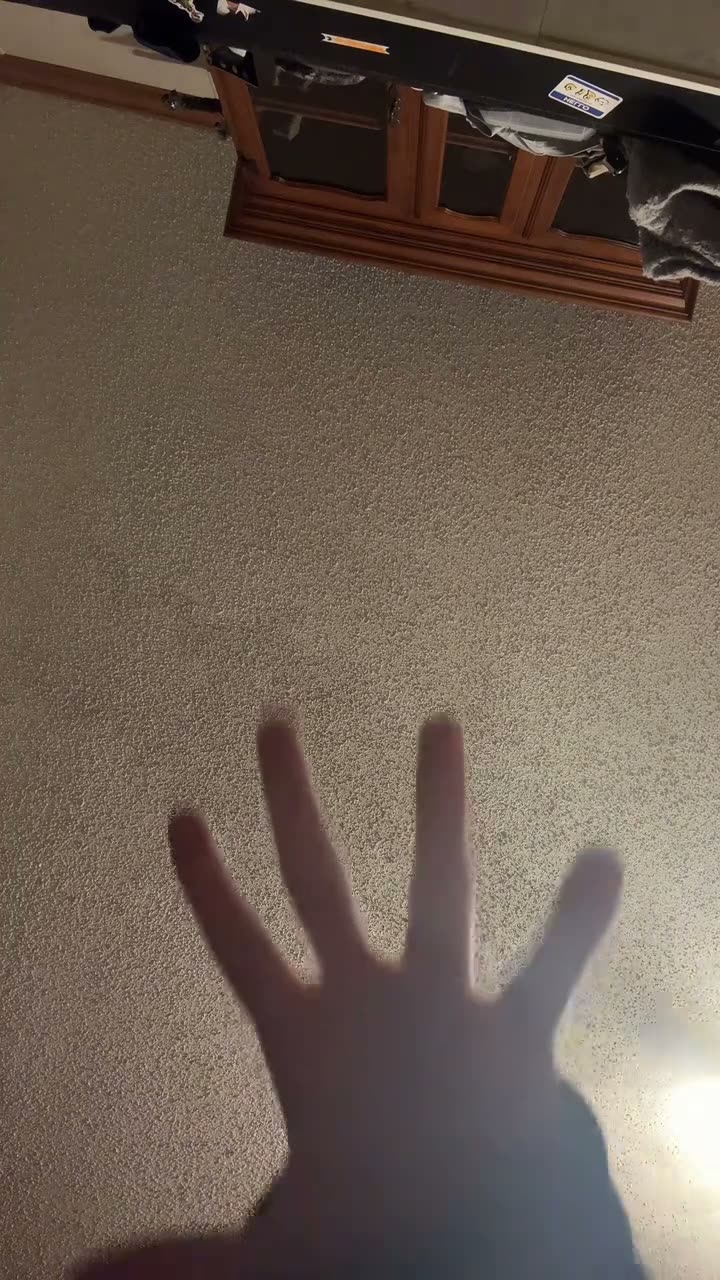
The clip starts with a hand reaching toward the ceiling. It then cuts to a cat on a rug. The cat moves through the frame and the rug is empty at the end. The quick edit makes an ordinary ceiling view into a small visual setup for the cat’s exit.
The TikTok by @slyerstar_ was posted on Nov 8, 2026. On Nov 15, the source had 4.2M views and 1.2M likes. A follow-up from another account also had millions of views. The original caption says the cat was not harmed. This page uses one photo of your own cat for the second scene and keeps the original linked.
| Time | Beat |
|---|---|
| Shot 1 | A hand reaches toward the ceiling. |
| Shot 2 | The video cuts to a cat on a rug. |
| Shot 3 | The cat moves out of frame. |
| Shot 4 | The empty rug holds for the last beat. |
02How to make the Reaching Out Cat AI video from one photo
The AI Trend Club page uses the linked TikTok as the visual reference. Add one photo of your own cat. The photo supplies the cat in the second scene, while the reference supplies the ceiling view, rug and quick cut. You can review the source and creator credit before opening the video maker. No prompt is required on the site.
The original caption says the cat was not harmed. Keep your own version light and use a photo of a cat you have permission to use. The task is to recreate the visual cut, not to handle or frighten a real animal.
- Open the trend pageOpen Reaching Out Cat and watch the linked TikTok. Check the source credit and the reach-to-rug sequence before starting.
- Choose one cat photoAdd one clear photo of your own cat for the second scene. This page is set up for one pet photo, not a group of different pets.
- Confirm photo permissionContinue to the creator and confirm that you have permission to use the image. The source movement remains the guide, and your cat photo takes the lead in the rug scene.
- Review resolution and creditsChoose 480p standard quality for 231 credits or 720p HD for 519 credits. Read the exact amount on the creator button before spending.
- Make and download the clipTap Make my video and wait for the render. Choose the version with the trend sound or the silent file when it is ready.
03The cat photo that works
Use one photo of your own cat for the second scene. The photo role is a single cat, so choose an image where the animal can be seen clearly. The page’s photo fixes recommend a sharp image and a subject that is not hidden.
- Use one cat photo.
- Keep the cat clearly visible.
- Choose a sharp image rather than a blurry one.
- Avoid a photo with several pets.
- Do not hide the cat behind an object or crop.
04The Reaching Out Cat AI prompt
AI Trend Club does not ask you to write a prompt. If you use a different video model that accepts a reference clip and image, this short description can help you keep the same cuts and ending.
Recreate the short vertical cut. Start with a hand reaching toward the ceiling, then cut to the rug where the cat in the reference photo appears. Let the cat move through the frame and leave the rug empty for the ending. Keep the floor, rug and camera angle from the source. Preserve the cat’s coat and markings from the photo. Keep the movement gentle and do not show grabbing, distress or injury. Do not add another lead or change the setting.05CapCut template or AI video?
A CapCut template usually combines clips that you record yourself. You might film a ceiling, reach toward it, then cut to your cat crossing a rug. You decide when to shoot and how to time the edit. That approach uses your footage instead of placing a photo into the linked source scene.
The AI video route on this page uses the TikTok as a visual reference. One photo of your cat guides the second scene while the reach, rug and quick cut come from the source. The page shows the original creator and lets you review the sequence before opening the maker.
CapCut can still help after a download if you want to trim the result or add captions. The AI Trend Club flow runs in a browser and does not require a separate app installation. The version with the trend sound and the silent file are both options on the page.
- Film the reach and cat scene yourself for a template edit.
- Use the linked source and one cat photo for the AI flow.
- Trim the download or add captions afterward.
06Is the Reaching Out Cat AI video free?
Viewing the original TikTok and the trend page is free. Making the video uses credits. A new account receives 25 welcome credits, enough for a few still images but not enough for this trend video. Review the amount on the creator button before you confirm.
A standard 480p render uses 231 credits. The 720p option uses 519 credits. The Week pass costs $6.99 and includes 800 credits, so it covers the standard option. The 1,000 credits pack costs $9.9. If a video render fails, the credits return automatically.
| Option | Price | Credits |
|---|---|---|
| Week pass | $6.99 | 800 |
| 1,000 credits | $9.90 | 1,000 |
07Post your Reaching Out Cat video
Choose the version with the trend sound or the silent download. If you post the clip, credit @slyerstar_ and link to the original TikTok. Keep the caption focused on the reach, cut and cat leaving the rug. Do not imply the real cat was harmed.
Caption ideas:
A reach and a quick exit.
The rug was clear a moment later.
My cat had the last word.
08Questions
- Is there a Reaching Out Cat AI template?
- This page has a one-photo AI video flow based on the linked TikTok. Add one photo of your own cat for the rug scene.
- Which AI makes the Reaching Out Cat video?
- The page uses an AI video model guided by the original clip. The model name is not listed here.
- Can I make it on my phone?
- Yes. Open the page in a browser; no app installation is required.
- How many credits does it use?
- Standard 480p uses 231 credits and 720p uses 519 credits. The creator button shows the amount before you confirm.
- Who posted the original?
- @slyerstar_ posted the linked TikTok on Nov 8, 2026. The trend page links back to it.