01What the Hug Your Younger Self photo is
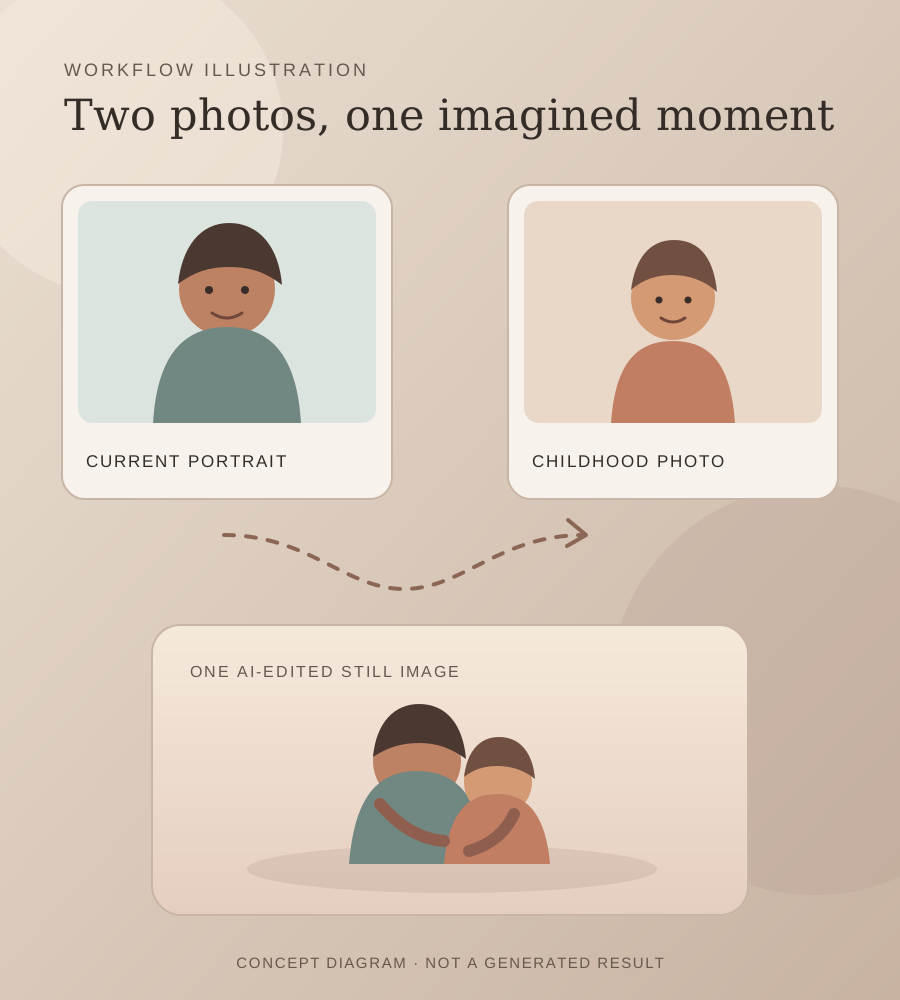
The Hug Your Younger Self format brings a current portrait and a childhood photo of the same person into one imagined scene. The adult version appears beside or embraces the younger version. The result on AI Trend Club is a still image, not a video.
The live Oraclip template shows the same two-photo setup and style choices. It is evidence that the format is offered, but does not name the first creator or establish where the idea began. We have not found a source post.
The aim is a personal image with a warm, reflective feeling. It can resemble a memory, but it is generated from references and may alter faces, ages or hands. Treat it as an imagined scene and check both people before you share it.
| Input | What to choose |
|---|---|
| Current photo | A portrait of the adult version of you |
| Childhood photo | A picture of the same person as a child |
| Result | One AI-edited still image of an imagined hug |
02How to make the photo from two pictures
Start from the trend page so the image editor opens with the hug prompt already filled in. You can read and change the prompt before submitting. The editor handles the image edit; you do not need to write a prompt from scratch.
- Open the trend pageChoose Make the hug photo. The link opens the existing GPT Image editor with this edit prompt.
- Add your current portraitUpload a recent portrait of the adult version of you as the first image.
- Add your childhood photoIn the editor, add another photo and upload a childhood picture of the same person as the second image.
- Review the prompt and priceConfirm the description matches your two inputs and check the five-credit price shown by the editor.
- Create and inspectSubmit the edit only when you are ready, then compare both faces and the overall pose with your source photos.
03Choose a photo pair that is easy to read
Use a current portrait and a childhood photo of the same person. Keep the face visible in each image so the model has clear references for the two different ages. A direct crop of a printed childhood picture can work as a reference when the face remains readable.
Old photographs can be faded or black and white. The model may infer colors and details that are missing from an older image, so compare the result with what you can actually see in the source. A generated image can shift the person's features or make the two ages look more alike than expected.
Only upload pictures you own or have permission to use. If the childhood photo includes other people, avoid presenting the generated image as a real moment between them. Keep the edit focused on the person whose two photos you supplied.
- One current portrait of the adult version of you
- One childhood photo of that same person
- A visible face in both references
- Photos you have permission to use
- A careful review for changes to age, face and hands
04Review the included AI image prompt
The trend button carries a prompt into the image editor. It labels the current adult portrait as the first input and the childhood photo as the second. That order matters because it tells the model which age belongs to each role.
You can change the wording before you submit. Keep the two roles clear if you edit it, and avoid asking for extra people or text. The prompt describes a gentle, non-romantic embrace and a simple background. It does not guarantee a precise likeness or a particular pose.
Here is the prompt included on the page. Check that its instructions match the photos you uploaded before you start the edit.
Use the two uploaded photos of the same person. Image 1 is the current adult portrait. Image 2 is that person as a child. Create one gentle, realistic portrait showing the adult embracing their younger self in a warm, imagined moment. Keep the adult clearly adult and the child clearly younger, fully clothed, with a caring and non-romantic pose. Preserve recognizable details where possible, while allowing for normal image-generation variation. Use soft window light and a simple neutral background. Make one complete scene, not a collage. Do not add extra people, text, logos, or a watermark.05Make a still image, then decide about motion
The Hug Your Younger Self page uses the image editor. It creates a still image from the two uploaded photos. It does not animate the hug or produce a video on this page.
If you want motion after you have saved an image, the separate Photo to Video tool can turn one photo into a short video. It uses a different flow and displays its price before you submit. You can also use the Add a Person to a Photo tool for a separate scene-editing task, such as placing someone into a picture they missed.
These are separate edits. Review each output and its price before continuing.
06What one image edit costs
One image edit currently uses five credits. The editor shows the exact credit price before submission, so you can review it before spending anything. Creating the page and opening the editor do not submit an image job.
This is an existing paid editor. The page includes no generated sample and makes no promise about the result. The model may change the pose or details from either input photo.
If the price is not right for you, leave the editor without submitting. If you continue, use images you have permission to edit and inspect the finished image before you save or share it.
07Share it as an imagined memory
Look closely at the two faces, the difference in age, the hands and the way the figures meet. If the result changes an important detail, do not present it as a true photograph or a real event. A short note that it is AI-created can make the context clear.
The available reference is a template page, not a source post. We have not confirmed who originated this format, so do not present the template provider as its first creator. Get consent from anyone shown.
Caption ideas can stay simple and personal:
- A small hug across the years.
- Today, with the kid I used to be.
- I wish I could tell my younger self this.
08Questions
- Do I need two photos?
- Yes. Use one current adult portrait and one childhood photo of the same person.
- Does this make a photo or a video?
- The trend page creates one still image. The separate Photo to Video tool can animate one photo in its own flow.
- Will it keep both faces exactly the same?
- No. The image model can change facial features, ages or hands. Check the result against both source photos.
- How much does one edit cost?
- The current image editor price is five credits per image edit. It shows the price before you submit.
- Who created the trend?
- We found an existing template page from Oraclip, but have not verified who first created the format.