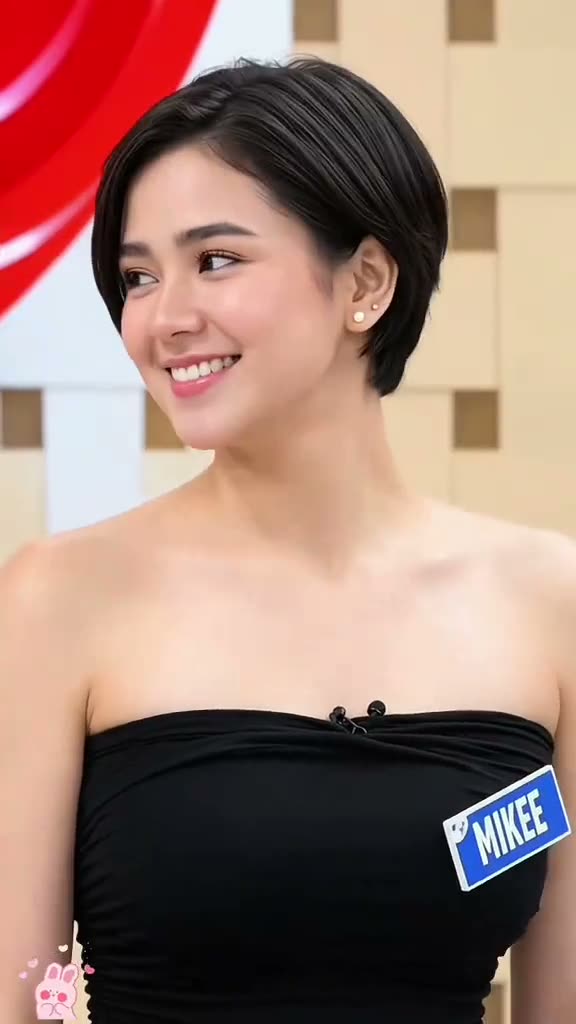
01What the Pixie Haircut AI filter shows
The linked TikTok tutorial by @farhanikeda shows a layered pixie-haircut preview and an image-edit walkthrough. The post was published on Nov 4, 2026. It had 2.8M views when checked on Nov 12, 2026. That number describes the linked post at that time and can change.
This trend page opens the existing image editor with a prompt for a short, layered pixie haircut. Add one portrait to make a still preview. It is not a haircut appointment, a moving video or a guarantee that the image will match a salon result.
- Reference: the linked tutorial by @farhanikeda
- Your input: one portrait with the face and hairline visible
- Your result: one AI-edited still image
- Credit price: 5 credits per image
02Choose a portrait with the hairline visible
Use one photo of the person whose hairstyle you want to preview. Keep the face and current hairline visible. The prompt asks for a short layered shape around the crown and temples while keeping the person's recognizable face, expression, clothing, pose and background.
Only upload a portrait you own or have permission to edit. A hat, large accessory or crop over the hairline leaves less of the current hairstyle for the edit to work from. After the result is ready, check both the face and the haircut before deciding whether it is useful as a preview.
- One portrait of the person who will appear in the edit
- Face and current hairline visible in the photo
- A photo you have permission to edit
- No hat or crop hiding the hairstyle area
03Review the included pixie haircut prompt
The trend page carries an editable prompt into the image editor. It asks for short, layered hair and tells the model to keep the person's face and surroundings. You can read the wording before you submit and make a small adjustment if you want more length or softer layers.
The prompt below gives the same direction in plain terms. It does not use a creator's personal name or promise an exact copy. Image generation can change details, so treat the output as a visual experiment and inspect it before sharing.
Edit the uploaded portrait so the same person has a short, layered pixie haircut with soft, visible layers around the crown and temples. Keep their recognizable face, skin tone, expression, clothing, pose, and background. Show a natural hairstyle preview with realistic hair texture and a flattering, tidy shape. Do not add text, logos, extra people, or accessories.04Make a still image in the editor
Open the image editor from the trend page. Add one portrait, confirm you have permission to edit it and review the prompt before submitting. The prompt is filled in for you, but you can change its wording. One image edit uses 5 credits, and the editor shows the price before you submit.
A new account receives 25 welcome credits. That equals five image edits if you have not spent any of those credits elsewhere. After you submit, wait for the still image and check the face, hairline, layers and background. Save it only if it works as the preview you wanted.
- Open the trend pageUse Edit your photo to open the image editor with the hairstyle prompt.
- Add and reviewUpload one portrait with the face and hairline visible, then check the prompt and credit price.
- Create and inspectSubmit the edit and review the haircut, face and background before saving the still image.
05Adjust common haircut preview issues
If the hair still looks long, make the request for a short pixie cut more direct. Keep the word layered if that texture matters to you. The prompt can be edited before another image request, but the model may still interpret the style differently from a hairdresser.
If the face or expression changes, use a portrait where the face is easy to see and keep the edit focused on hair. If the new layers look stiff, ask for softer layers around the crown and temples. Make one prompt change at a time, then compare the next still image with the portrait you uploaded.
| What you see | What to adjust |
|---|---|
| Hair remains too long | Make the request for a short pixie shape more direct. |
| Face or expression changed | Choose a clearer portrait and keep the edit focused on hair. |
| Layers look stiff | Ask for softer layers and natural hair texture. |
06Understand the credit price
One image edit uses 5 credits. The image editor displays the current price before the request is submitted, so you can decide whether to continue. The result is one still image, not a video render or a professionally fitted haircut.
A new account receives 25 welcome credits. If you have not used them for another tool, they cover five image edits at 5 credits each. Any credit pack purchase is optional and separate from opening the reference clip or reading the trend page.
| Option | Credits | What it covers |
|---|---|---|
| One image edit | 5 | One AI-edited still image |
| New account welcome credits | 25 | Five image edits if unused |
07Share the hairstyle preview clearly
The linked tutorial is by @farhanikeda. Credit that account when you refer to the reference clip. Your output comes from your portrait and an AI edit prompt, so do not present it as a photo of a haircut you already received or as proof that a specific style will fit you in person.
Look at the face, layers and hairline before posting. A simple caption can describe the idea, such as 'Trying a layered pixie preview' or 'Short hair, just to see.' If the result changes your face too much, keep it private or try another permitted portrait instead of sharing a misleading comparison.
- Credit @farhanikeda when discussing the linked reference
- Label your result as an AI-edited preview
- Check the face and hairstyle before sharing
- Do not present the image as a real haircut result
08Questions
- Is the Pixie Haircut AI Filter a video?
- No. This page uses the image editor to create one AI-edited still image from a portrait.
- Can I change the prompt?
- Yes. Review the included wording in the image editor and adjust it before submitting.
- How many credits does one edit use?
- One image edit uses 5 credits. The editor shows the price before submission.
- Will the preview match a real haircut?
- Not necessarily. It is an AI-edited still image, so inspect the face and hairstyle and do not treat it as a salon result.
- Who posted the linked tutorial?
- @farhanikeda posted it on TikTok on Nov 4, 2026. The trend page links to the original post.