01What happens in the Rollie On My Wrist trend
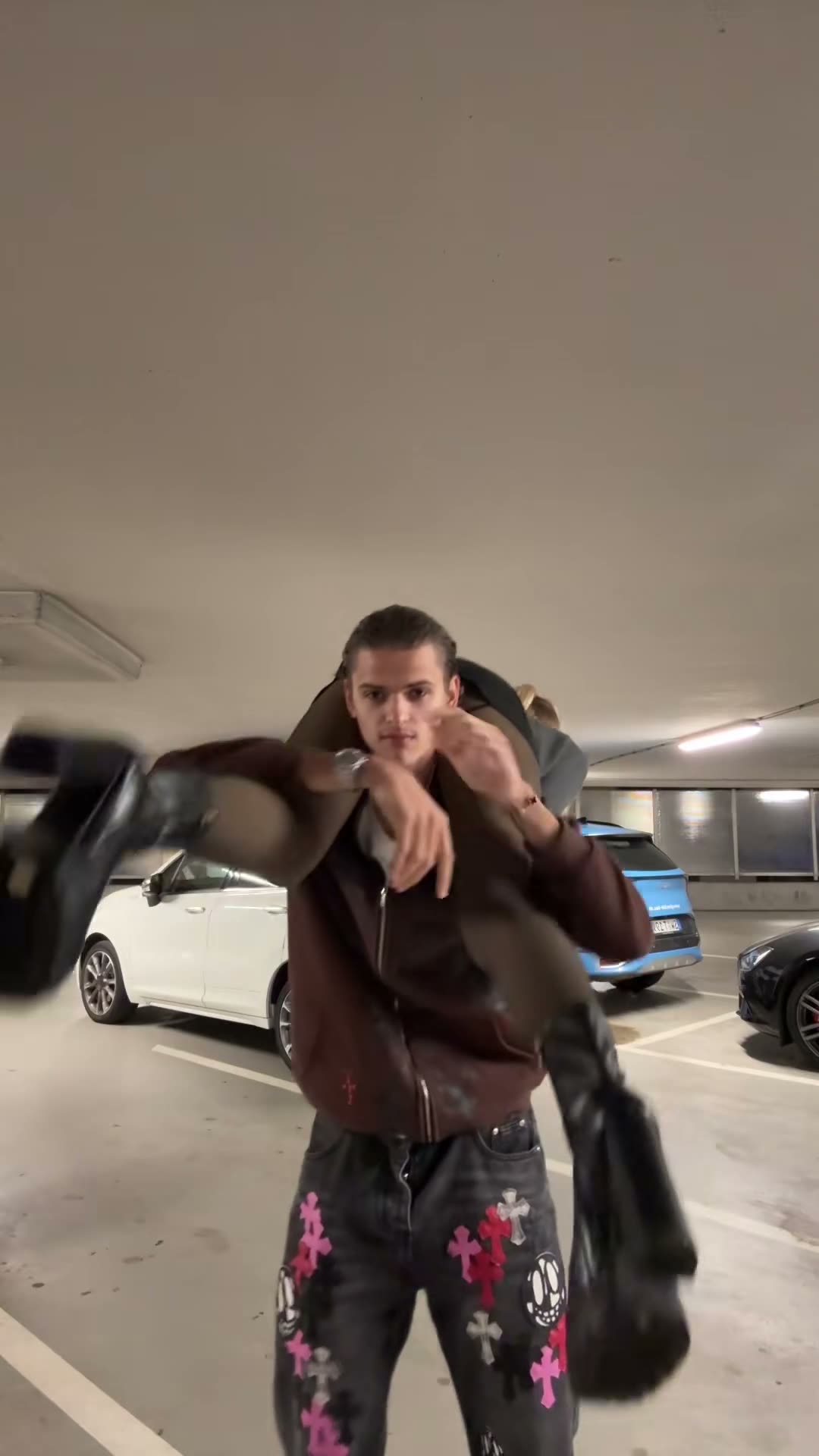
The Rollie On My Wrist trend shows two adults in a shoulder carry. One person carries the other across their shoulders, turns in a parking garage, and brings the rider’s face into view. The short turn sets up the reveal, so the two people and the movement are the focus.
The AI Trend Club page links to the original TikTok and uses its clip as the guide. Your version uses two adult photos, one for the Carrier and one for the Rider. The source movement, turn, and garage stay in the scene while each uploaded person takes one role.
| Time | Beat |
|---|---|
| Shot 1 | The Carrier holds the Rider across their shoulders in a parking garage. |
| Shot 2 | The Carrier turns with the Rider still across their back. |
| Shot 3 | The Rider’s face comes into view as the turn finishes. |
| Shot 4 | The pair hold the pose for the final beat. |
02How to make the Rollie On My Wrist AI video from two photos
The page has a two-photo workflow. Choose a separate adult photo for each role, and make sure you have permission to use both. You do not need to write a prompt on AI Trend Club. The original clip guides the carry and turn.
Open the trend page first if you want to see the original and check the role descriptions. Before you spend credits, look at the quality and exact charge shown on the button. You can choose to download with the trend sound or silently after the video is ready.
- Open the trend pageOpen the Rollie On My Wrist page on AI Trend Club. The page shows the linked source clip and its creator credit.
- Start your versionPress Create your own to open the video workflow in your browser. There is no app to install.
- Add two adult photosAdd one adult photo for the Carrier and a different adult photo for the Rider. Confirm you have permission to use both photos.
- Choose a qualitySelect 480p for 461 credits or 720p for 1,037 credits. Check the button for the exact amount before you submit.
- Make and downloadTap Make my video. When the render is ready, download it with the trend sound or choose a silent copy.
03The photos that work
Use separate photos of two adults and assign them to the matching Carrier and Rider roles on the page. The order matters because each photo plays a different person in the source clip.
- Use one adult photo for the Carrier role.
- Use a different adult photo for the Rider role.
- Check the role labels before you start the video.
- Confirm you have permission to use both photos.
- Avoid one photo that contains both people.
- Avoid assigning the same photo to both roles.
04The Rollie On My Wrist AI prompt
You do not need to enter a prompt on AI Trend Club. If you want to try the idea in another video model that accepts reference photos and a source clip, you can start with this description.
Use the source video as the movement and setting reference. The person in the first reference photo carries the person in the second reference photo across their shoulders. Keep the two identities separate and consistent. In the vertical parking garage shot, hold the shoulder carry as the Carrier turns. Let the Rider’s face come into view as the turn finishes. Preserve the camera framing, background, movement, and timing. Do not add extra people, text, logos, or a new action.05CapCut template or AI video?
A CapCut template is an edit layout for clips you record or choose. It can arrange your own footage, but it does not put your two photos into the source video’s parking-garage scene. The AI video uses the linked original as a guide and places one adult photo in each of the two roles.
Choose a template if you want to cut together footage you filmed yourself. Choose the AI workflow if you want the two photos to take the Carrier and Rider roles in the original movement. After downloading your video, you can use CapCut to add captions or the trend sound if you chose a silent copy.
- The AI workflow follows the source clip and uses two adult photos.
- A template arranges footage that you provide.
- CapCut can add captions or sound after you download the video.
06Is the Rollie On My Wrist AI video free?
Watching the original and reading the trend page are free. A new account receives 25 welcome credits, enough for a few images but not this video. The Rollie On My Wrist video uses 461 credits at 480p or 1,037 credits at 720p. A failed video returns its credits automatically.
The Week pass is the lower-cost starting option at $6.99 for 800 credits, enough for one 480p version. The 1,000-credit pack costs $9.90. It is 37 credits short of the 720p amount, so check the credit balance and exact charge shown before you submit. The page shows the charge before you spend.
| Option | Price | Credits |
|---|---|---|
| Week pass | $6.99 | 800 |
| 1,000 credits | $9.90 | 1,000 |
07Post it
The original sound is included with the source video. Choose the version with the trend sound if you want it in your download. Credit @777emilyyyy in your caption and link to the original TikTok so people can find the creator’s clip.
Keep your caption close to the two-person reveal. These short ideas describe the movement without adding a story that is not in the clip.
- One turn, one reveal.
- Two roles, one quick switch.
- The shoulder carry gets a second look.
08Questions
- Is there a Rollie On My Wrist AI template?
- A CapCut template arranges clips you provide. On AI Trend Club, the source TikTok guides an AI video with two adult photos, one for each role.
- Which AI makes the Rollie On My Wrist video?
- It uses an AI video model guided by the original clip. Add one adult photo for the Carrier and another for the Rider.
- Can I make the video on my phone?
- Yes. The workflow runs in a browser, so you can open the trend page on your phone without installing an app.
- How many photos do I need?
- Use two separate adult photos, one for the Carrier and one for the Rider. Confirm you have permission to use both.
- Who made the original?
- @777emilyyyy posted the original on TikTok on Oct 24, 2026. The trend page links to the source post.