01What the My Moon My Man Jesus photo trend shows
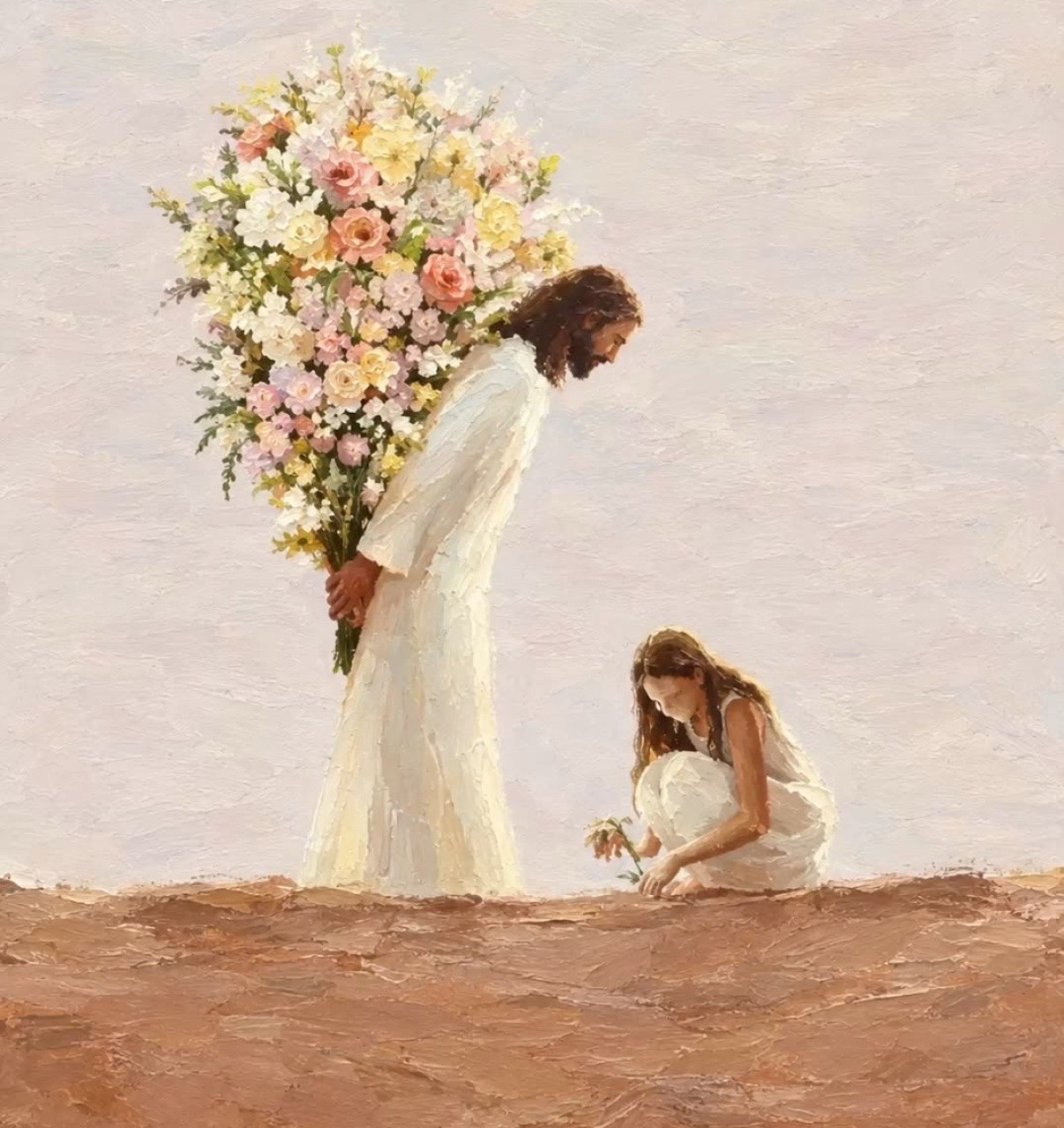
The linked TikTok post is a Photo Mode carousel with two slides. Its first image is the creator’s outdoor portrait. The second is a painterly scene of someone picking a flower while a long-haired, white-robed Jesus-inspired figure holds a bouquet behind them.
The AI Trend Club page uses one portrait to make a new still image based on that second-slide idea. It is an image edit, not an animation of the creator’s post. The reference artwork stays credited to @kyleighrandall and is shown as the creator’s image, not as an AI Trend Club result.
The linked post had 1.2M views and 353.8K likes when checked on Nov 16, 2026. Those numbers are a snapshot of that post. They do not predict how a new image or post will do. The wider format’s first creator has not been verified.
02Choose one portrait
The editor needs one portrait for this scene. Use a photo of yourself, or another person who has given permission for the image to be edited. Keep the person’s face visible so you can review whether the finished scene still resembles the input.
The page asks for a single person in the edit. Its prompt describes that person picking a small flower in the foreground, with the flower-filled figure behind them. This gives the editor a clear relationship to build around without carrying the original creator’s finished artwork into your image.
- Use one clear portrait with a visible face.
- Use a photo you have permission to edit.
- Keep the person in your photo as the scene’s main subject.
- Treat the reference post as inspiration, not as an image to copy.
03Review the included flower scene prompt
The trend page opens the existing image editor with a prompt already filled in. It asks for a recognizable adult picking a small flower, then places a gentle Jesus-inspired figure in a white robe behind them with a bouquet. The wording calls for a calm, painterly scene.
Read the prompt before you submit. You can adjust it if you want a different pose, color palette or outdoor setting. Keep the scene as a new interpretation of the idea. The linked creator’s exact artwork should remain credited to its creator rather than copied as your own sample.
Edit the uploaded portrait into one new, painterly vertical still image. Keep the same adult recognizable, kneeling to pick a small flower in the foreground. Behind them, show a gentle Jesus-inspired figure with long hair and a simple white robe, holding a large bouquet of soft-colored flowers. Use a warm, calm outdoor setting with a hand-painted look. Make this an original interpretation, not a copy of the linked creator’s artwork. Keep one uploaded person, with no extra people, text, logos or watermark.04Make a still image in the editor
Open the photo editor from the trend page so the included prompt comes with you. Add the portrait and confirm you have permission to use it. The editor shows the price before you submit. One image edit uses 5 credits.
Review the prompt once more, especially the flower, bouquet and white-robed figure. If you changed the wording, make sure it still describes one person and a new scene. Submit only when the photo and prompt match what you want to create.
When the image is ready, look at the face, flower and bouquet. Check that the result reads as a painterly interpretation and not a copy of the creator’s second slide. Keep it as a still picture. The existing image editor does not animate the post.
- Open the trend pageUse the button to open the existing image editor with the prompt filled in.
- Add one portraitChoose one permitted photo and review the wording.
- Create and inspectConfirm the shown price, submit the image edit, then inspect the result before saving or sharing.
05Fix common flower and portrait issues
If the person is hard to recognize, use a clear portrait with a visible face. The page’s prompt already asks the editor to keep the same adult recognizable. Review the image before sharing, because this workflow is still an AI-created interpretation.
If the flower or bouquet is missing, read the prompt and keep both details in it. Keep the foreground action simple: the person picks a small flower, and the figure in the background holds the bouquet. Avoid replacing those central details with a different scene.
| What you see | What to adjust |
|---|---|
| The person is hard to recognize | Use one clear portrait with a visible face. |
| The flower or bouquet is missing | Review the prompt and keep both details. |
| The result copies the reference too closely | Change the pose, colors or setting. |
06Share the image with context
The linked reference is a Photo Mode post by @kyleighrandall. Credit that creator when you discuss the example and link back to the post. The post’s view and like totals were checked on Nov 16, 2026, so treat them as a dated snapshot rather than a promise of future reach.
Describe your image as an AI-created interpretation. The page’s intended scene is a personal portrait with a flower and a Jesus-inspired figure holding a bouquet. It is not a record of a real event, and the reference painting is not your own generated sample.
07A quick review before you post
Start with one permitted portrait. Review the included prompt before submitting, then inspect the finished still image. Keep the source credit attached to the reference and describe your result as a new interpretation.
This format is designed as a personal image or dedication. If you share the result, make clear that it was AI-created. Do not present the image as proof that an event happened or as the linked creator’s original artwork.
08Questions
- What is the My Moon My Man Jesus AI photo?
- It is a still image inspired by the flower scene in the second slide of the linked TikTok Photo Mode post.
- How many photos do I need?
- Use one clear portrait that you have permission to edit.
- Does this make a video?
- No. The existing image editor makes one still image and does not animate the post.
- How much does one edit cost?
- The image editor displays the current price before you submit. One image edit uses 5 credits.
- Who posted the reference image?
- The linked Photo Mode post is by @kyleighrandall. The page links to the original post.