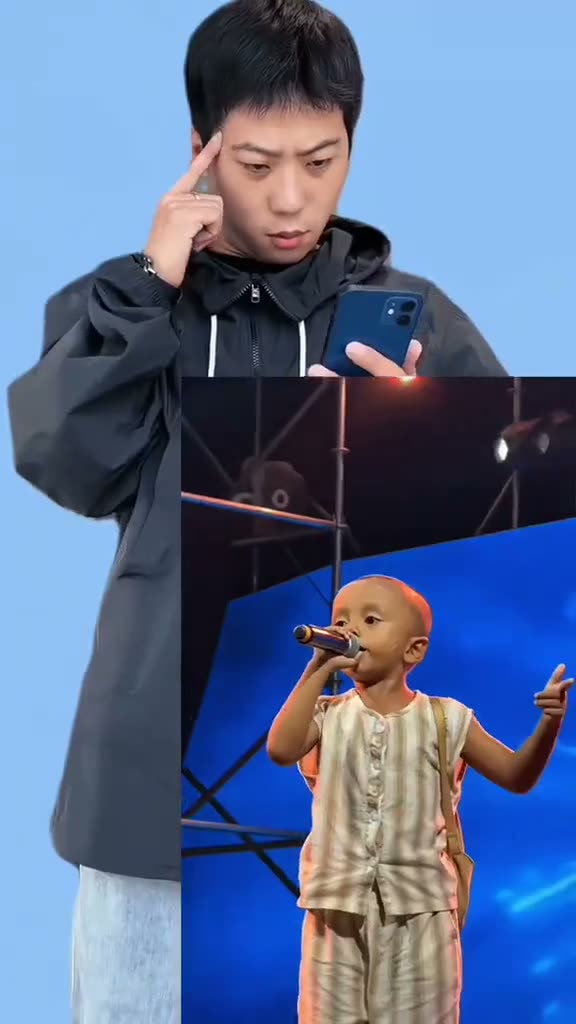
01What happens in the AI Concert Singing trend
The selected scene opens on a solo performer holding a microphone beneath blue stage lights. The performer raises a free hand while remaining near the center of the stage. The page uses this opening moment from the creator's tutorial, trimmed to a short vertical reference clip. It is a visual stage effect, not a promise that generated mouth movements will match a song.
The source tutorial was posted by @jimenjaiaef on TikTok on October 25, 2026. It had 1.1M views and 55K likes when checked on November 16, 2026. The original tutorial contains additional examples after the selected opening. This page focuses on the solo stage segment and the look of the performance scene.
| Part of the clip | What appears |
|---|---|
| Opening | A performer holds a microphone under blue lights. |
| Gesture | The performer raises a free hand on stage. |
| Reference | The page uses the opening solo stage moment. |
| Your version | One photo takes the performer's place. |
02How to make the stage video from a photo
Open the AI Concert Singing page and watch the original segment before creating. The page explains the role your image will take. The original video supplies the stage, lighting, framing, and movement. You do not need to write a prompt or choose the setting yourself.
Add a photo you have permission to use, then select the quality you want. The number of credits appears on the button before you spend. The generation process runs in your browser. Finished videos are private to your account, and a failed render returns its credits automatically.
- Open the trendGo to the AI Concert Singing page and review the original stage shot.
- Start your versionPress Create your own to open the photo step.
- Add one photoChoose a clear photo of yourself and confirm you have permission to use it.
- Choose qualitySelect 480p or 720p and check the displayed credit amount.
- Create and downloadTap Make my video, then choose a sound option when the clip is ready.
03Choose a clear stage photo
Use one clear, front-facing photo with the performer's full face visible. This is the photo guidance listed for the stage performer role on the trend page. The original supplies the microphone, blue lighting, and stage, so your uploaded image does not need those scene details.
The role is a solo performer, so use one person's photo only if you have permission to use it. The page is built around one photo, and the recipe expects a person as the lead. Check the photo guidance on the trend page before you start.
- Use one clear person photo.
- Choose a front-facing photo with the full face visible.
- The microphone and stage lights come from the reference clip.
- Use one person's photo with permission.
- Confirm you have permission to use the photo.
04Scene description for the stage effect
You do not enter a written prompt on the trend page. This short description is a plain-language summary for readers who want to understand the reference. The original clip guides the scene and the lead's movement after you add a photo.
The selected reference is short and stays on the solo performer. Review your output for a consistent face, microphone position, and stage lighting. The result can vary, especially around fast movement or close shots.
Place the person in the photo as the solo performer holding a microphone under blue stage lights. Keep the opening vertical stage shot, microphone, background, and free-hand gesture. Change only the performer's identity. Do not add lyrics or extra stage performers.05Sound and singing expectations
The video model generates the visual scene without audio. The download flow can offer the trend sound or a silent version, but the recipe does not promise lyric lip sync. A microphone in the scene does not mean the generated person will sing particular words or match a recording precisely.
If synchronized singing is the main thing you want, this particular trend may not fit that expectation. It is built around the stage look and the performer's visible gestures. Watch the result before sharing it, and choose the sound option that works for your intended use.
06Review credits before spending
A new account receives 25 welcome credits, which are enough for a few images but not a trend video. This short template uses 231 credits at standard quality or 519 credits at HD quality. The button shows the exact number before you start, so rely on the current page display.
The Week pass costs $6.99 and includes 800 credits, which covers one standard video. Other passes and credit packs have different amounts. Review the displayed credit total and price before completing a purchase. If a video render fails, its credits come back automatically.
| Choice | Credits or price |
|---|---|
| Standard quality, 480p | 231 credits |
| HD quality, 720p | 519 credits |
| Week pass | $6.99 for 800 credits |
| Welcome credits | 25 credits for new accounts |
07Download and review the finished clip
When the video is ready, select the trend sound or silent download option. The page provides a vertical clip sized for short-form video. Check the face, microphone, and stage scene before you save it. If the result is not clear, use a clear, front-facing photo with the full face visible, as the page recommends.
Use only photos you have permission to use. Finished videos are private to your account. The original tutorial is linked on the trend page so readers can compare the source stage scene with their own result. You can keep the file for personal review or choose where to share it yourself.
08Questions
- Does the AI Concert Singing video include audio?
- The generation itself is silent. You can choose the trend sound or a silent download when the video is ready.
- Will it sing along with the lyrics?
- The recipe does not promise lyric lip sync. It recreates the visual stage scene and movements.
- How many credits does the video use?
- The current page lists 231 credits at 480p and 519 credits at 720p. Check the button before you spend.
- Who made the original?
- Creator @jimenjaiaef posted the tutorial on TikTok on October 25, 2026. We show the original and link back to it above.