01What happens in the Hand Pinch Filter trend
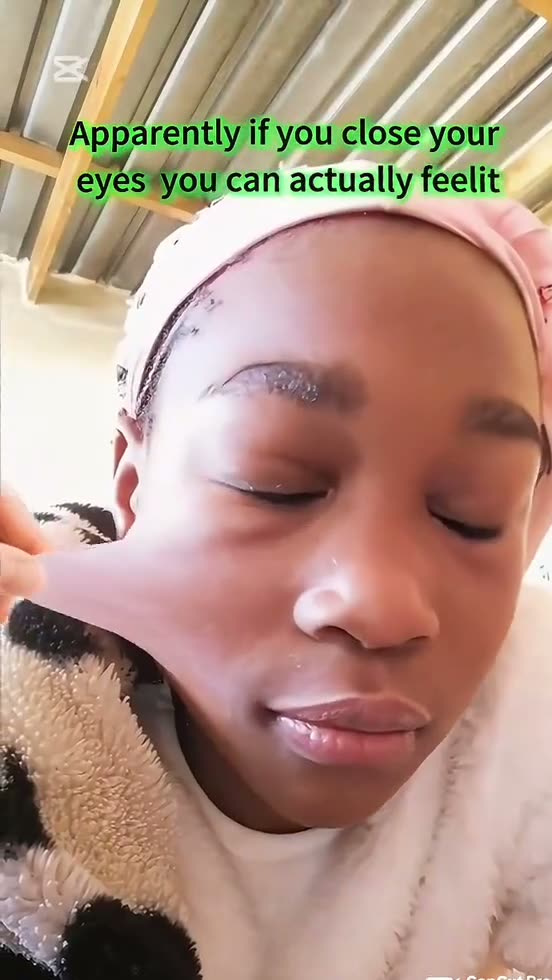
The reference crops in close on one person. Their eyes are shut before an on-screen hand pulls a cheek to the side. The cheek stretches like rubber, and the person opens their eyes as the effect becomes obvious.
The page shows a short excerpt focused on that adult and that reaction. The source post continues after this moment. Use the brief clip to see the framing and the direction of the cheek stretch before you choose a portrait.
| Shot | Beat |
|---|---|
| Shot 1 | An adult holds still with their eyes shut in a tight portrait. |
| Shot 2 | A hand pulls one cheek sideways into a rubbery stretch. |
| Shot 3 | The adult opens their eyes and reacts while the cheek is stretched. |
02How to make the Hand Pinch Filter AI video from one photo
The reference on the site is about 4 seconds long. Watch with the sound off to judge how well the result carries the action on its own. The generated clip is silent.
- Open the trend pageStart with the clip credited to @xmyr7e3 on TikTok. Watch the section you want to recognize in your own cut. The source shows the order of the actions and the role that the template fills.
- Open Create your ownUse the button on the trend page to open its template. The browser opens the creation screen with the reference already selected. You can use it on your phone.
- Add your photoChoose one photo for the adult in the close-up. Confirm that you have permission to use the image or images. Check the role labels and inspect the photo on the screen before you continue.
- Select a resolutionThis template lists 185 credits at 480p and 277 credits at 720p. Read the exact charge on the generation button before you start. Choose the resolution you want for the video you plan to share.
- Make the video and review itTap Make my video and open the result when it is ready. Look at the eyes, nose and cheek together. The stretch should be localized to one cheek, and the person should remain recognizable through the reaction. Start with a sharper photo if the result makes the outline of the face hard to read.
03The photo that works for Hand Pinch Filter
Choose a portrait with both cheeks in view and some blank space beside the face. A hand against the cheek or hair across the face can make the effect difficult to read. The template uses your portrait as the subject of the close-up and supplies the on-screen movement.
Use the original image if a cropped copy cuts off something the template needs to see. You can look at the upload on your phone at the size you expect people to watch, so blur and dark areas are easier to spot.
- Use a portrait with both cheeks visible and some space beside the face.
- Use a sharper original photo with light across the face.
- Use a photo you have permission to upload.
- Check that the intended subject is easy to find in the photo.
04A reference prompt for Hand Pinch Filter
AI Trend Club fills in the prompt when you select this template. If you are working in a different editor that accepts a reference image and a reference video, use the prompt below to describe the action and how it should be framed.
Read through the prompt before you run it. The order of the shots matters here. Put the lead and the framing first, then describe the actions in the order you see them in the reference.
Hold a tight, steady portrait frame on the adult in the reference photo. Keep both cheeks visible as the adult closes their eyes. Let a single hand appear at the side and create a brief, exaggerated digital stretch on the nearest cheek. The adult opens their eyes in surprise while the cheek is still stretched. Keep the effect playful and free of injury. Match the original close perspective, keep the other features recognizable and leave the result silent with no captions.05CapCut template or AI video?
The stretch is visible within a single close-up. If you combine it with footage you have already shot, put the existing clip before or after the reaction so the face stays visible when the effect happens. A caption can clarify what the person is reacting to, especially if the video is posted without audio.
A conventional editing template assembles footage you bring to the project. This AI Trend Club template starts with a portrait and uses the clip as a reference for the new scene. You can export the result and take it into a video editor for your own captions or audio afterward.
06Is the Hand Pinch Filter AI video free?
You can open the trend page and watch the credited source for free. New accounts start with 25 welcome credits, which cover a few images. A video like this requires more credits. The prices below are the credit options listed for this template.
Check the displayed cost before tapping the generation button. If a video fails, the credits are returned automatically. You can decide whether to try again after checking your input against the role and photo guidance above.
| Option | Price | Credits |
|---|---|---|
| Week pass | $6.99 | 800 |
| Month pass | $19.99 | 2,500 |
| Year pass | $149.99 | 3,000 |
| 1,000 credits | $9.90 | 1,000 |
| 3,300 credits | $29.90 | 3,300 |
| 8,000 credits | $69.90 | 8,000 |
07Post the finished clip
The reaction gives you a compact cut for a reply or a short before-and-after joke. Let the closed eyes establish the calm moment before adding any caption about the surprise. A quick watch at phone size will show whether the cheek is still easy to see.
Credit @xmyr7e3 when you refer to the source in your caption. Watch your own exported video once before you post it. Add your own audio in your editor if you want sound.
- I opened my eyes at the wrong time.
- That was a bigger surprise than expected.
08Questions
- Do I have to film myself closing my eyes?
- Only an adult portrait is needed. The closed eyes and the cheek movement are part of the reference-guided video.
- Can I make the video from my phone?
- Yes. Open the trend page in your browser, tap Create your own and add the requested photo or photos. Select your resolution and check the credit total before you generate.
- Who posted the reference video?
- The reference is from @xmyr7e3 on TikTok. The trend page links to that post and shows the credited clip near the top.
- Does the download include sound?
- The download is silent. You can add the audio you want after downloading the video.